How to Capture Ideas Quickly Without Losing Focus

 Farid Asadi
An idea arrives halfway through something else. Save enough to recover it later, then get back to what you were doing.
To capture ideas quickly, use one easy-to-reach inbox, write or dictate the thought with a clue about its context, and return to what you were doing. Save the decisions about folders, tags, and priority for later. A useful quick note preserves enough meaning for you to pick it up again.
Quick answer: Choose one default place for quick notes. Record the idea and why it matters, save it, and return to your activity. Later, move real commitments into a task or calendar system and give useful ideas a way to return through search, review, or note resurfacing.
What Is Quick Capture?
Quick capture is saving a thought at the moment it appears so you can return to it later. It might be a sentence, a spoken fragment, or a link with a short explanation. The capture is complete when you have saved enough to recover the meaning without continuing to develop it.
Imagine you are writing a proposal when you remember a question for tomorrow’s customer call. You could keep rehearsing the question, open the customer file and begin preparing, or save one line and return to the proposal. Quick capture is the third option.
Risko and Gilbert’s review of cognitive offloading describes how external tools can reduce what a task requires us to hold or process internally. Writing something down is one way to do that.
A brain dump makes room for many thoughts at once. Quick capture handles the thought that arrives while you are already doing something else.
A Simple Quick Capture Routine
Make the routine small enough to use in the middle of an ordinary day. Set up the destination once, then repeat these four steps whenever a thought needs saving:
- Open your default inbox. Use the same note, notebook, or capture view so you can begin without choosing a destination.
- Save the thought and one useful clue. Include the project, person, reason, or source that will make it understandable later.
- Check that it landed. Confirm the note was saved or the words were transcribed. Leave the editing for later unless the meaning is wrong.
- Return to your activity. Close the capture view before the idea becomes an unplanned work session.
Try “customer call: ask Maya which onboarding step needed help.” That is enough to recover the question. You can prepare the rest of the call when it is time.
Separating collection from later decisions is also part of Getting Things Done’s capture and clarify stages. You can use that distinction without adopting the whole system.
What Should You Write in a Quick Note?
Write the idea plus the smallest amount of context needed to understand it later. A single keyword may feel sufficient while the situation is fresh. Add the missing clue before you leave: what the idea concerns, why you noticed it, or where you might use it.
These invented examples show the difference:
| Too little context | A note you can pick up later |
|---|---|
| “Pricing” | “Pricing page: show a customer example before the plan options” |
| “Ask Maya” | “Tomorrow’s customer call: ask Maya which onboarding step needed help” |
| “Article idea” | “Newsletter: compare collecting advice with actually trying one suggestion” |
| A saved link | “Use this chart in the quarterly review: it explains the support spike” |
You do not need a template for every entry. Often, a project name and a useful sentence are enough. If the thought depends on an article or conversation, preserve the link or the person’s name.
Quick takeaway: A useful quick note contains a thought and a clue for your future self. In the examples above, adding a person, project, or reason turns an ambiguous fragment into something recoverable. Stop once you have enough context; expand the idea when you are ready to use it.
How Do You Capture an Idea During Focused Work?
Keep a capture surface close to your work and use it only long enough to preserve the thought. If the interruption has already pulled you away, leave a short note about where to resume before switching. “Continue at the budget assumptions paragraph” can be more useful than trusting yourself to remember your place.
In four studies on interrupted work, Sophie Leroy and Theresa Glomb found that anticipating a pressured return could leave attention on the unfinished task. Briefly planning the return reduced that effect. Their studies support the value of a return plan; they did not test this exact quick capture routine.
Apply the idea lightly. If an unrelated thought is easy to save, jot it down and continue. If you have begun following it elsewhere, record your next step on the original task first.
Avoid opening your whole archive during capture. The new thought can wait for its connections until your current work reaches a stopping point.
Is Voice Capture Better Than Typing?
Voice capture is useful when the thought is easier to say than type and speaking fits your surroundings. Typing is often simpler for a short line at your desk or in a shared space. Try both with the kinds of thoughts you actually save before making either your default.
For example, dictate: “Article idea: show the same messy note at capture, review, and reuse.” Stop when the idea is recoverable. You can build the outline later.
Apple’s Dictation guide explains how to enter spoken text in a text field and switch between speaking and typing. Availability varies by language and region. Speech-to-text gives you text to revisit; an audio recording preserves the original sound but may require listening again.
Check names, numbers, and dates when they matter. A transcript that changes “Maya” to “mail” can lose the clue you needed. Keep the choice practical: use whichever input lets you preserve the meaning with less interruption.
How Do You Make Quick Capture Easy to Reach?
Put your capture destination somewhere you already know how to reach. On a computer, that might be a pinned browser tab or a notebook beside the keyboard. On your phone, use an easily reached notes app or a built-in quick note control. Set up the route before you need it.
For iPhone users, Apple documents a Quick Note control in Control Center. Supported apps also offer a route through the share menu. If Apple Notes is your capture tool, those entry points can save you from navigating through folders first.
Use one default inbox across the places you work when possible. If you keep a paper fallback, decide when useful entries move into your main system. Otherwise, “I wrote it somewhere” becomes its own retrieval problem.
You can choose a familiar tool now and improve the route later. Our brain dump app comparison covers options if you need a different home for your notes.
Three Everyday Quick Capture Examples
These are illustrative scenarios, not timed tests or user case studies. Each saves a different kind of thought without requiring a planning session.
An idea during a work session
You are editing a report when a better way to explain a product feature occurs to you. Save: “Homepage: show one messy note becoming a useful insight.” Close the note and continue editing. Develop the example when you next work on the homepage.
A thought while walking
At a convenient stopping point, dictate: “Essay idea: I collect advice when I am avoiding making a decision. Use the course-buying example.” The second sentence gives the thought somewhere to begin when you return to it.
A reminder between meetings
You remember that you owe a colleague a document. If it needs a reminder this afternoon, put it directly in your task system: “Send Sam the revised proposal at 3 p.m.” If you save it in general notes first, move it when you next pause. A note alone will not notify you.
What Should Happen to Quick Notes Later?
Return to quick notes when you can make decisions about them. Start with a brief scan at a natural break, such as the end of a work block. Move genuine commitments into your task or calendar system, keep promising ideas available, and remove fragments that no longer matter.
Research on intention offloading examines how people use external reminders to support future actions. A saved idea and a reminder serve different purposes. A note preserves information; a well-placed reminder can prompt you to act at the relevant time.
For ideas, choose a route back that fits their use. Revisit customer questions before calls. Read article fragments when planning a draft. Search with project names you included during capture. Note resurfacing offers another route by bringing older material back into view.
For a worked example of separating actions from thoughts and ideas, see what to do after a brain dump. You can also connect related fragments through notes synthesis when you have room to think.
How Do You Keep Quick Notes From Becoming a Junk Drawer?
Give your inbox a small, repeatable review rather than an elaborate filing requirement. Begin with five minutes at a break and adjust to the amount you capture. That is a starting suggestion, not a research-backed time limit. The useful test is whether commitments leave the inbox and worthwhile ideas remain recoverable.
For a simple review, ask:
- Does this require action? Put the next step where you manage commitments.
- Will this help with something I am working on? Keep enough context to find it around that project.
- Is this only a passing thought? Leave it or remove it without turning it into work.
If you consistently avoid review because every note needs categories, simplify the system. Our guide to organizing notes explains several options, including search and tags.
Quick takeaway: Quick capture needs a return path. In the three scenarios above, that means revisiting a homepage idea during editing, finding an essay fragment during drafting, and receiving a reminder to send a document. Choose the return path that fits the thought rather than treating every note as a task.
How Can You Tell Whether Quick Capture Is Working?
Try the routine for three ordinary days and look at what happened. Could you reach your capture place without hesitation? Did you return to your original activity? When you reopened the notes, could you understand them? Did anything useful become a question, decision, draft, or completed follow-up?
Use a small sample of your own notes. If “pricing” has already become mysterious, add context next time. If every capture becomes ten minutes of browsing, simplify the entry point or try paper during focused work. If useful notes never return, change the review or retrieval path.
This is a personal workflow check, not a benchmark. Capturing more notes is not enough to show that the routine helps.
The best evidence is practical: you preserved something worth keeping, continued with your day, and could use the thought when it mattered. Change whichever part of that sequence keeps failing before adding more structure.
Where Lightnote Fits
Lightnote is an AI brain dump notebook for capturing mixed thoughts and making them useful later. You can type a short note or use speech-to-text. Auto Tagging organizes notes, Live Notes summarize related writing across tags, and Daily Insights bring patterns back into view.
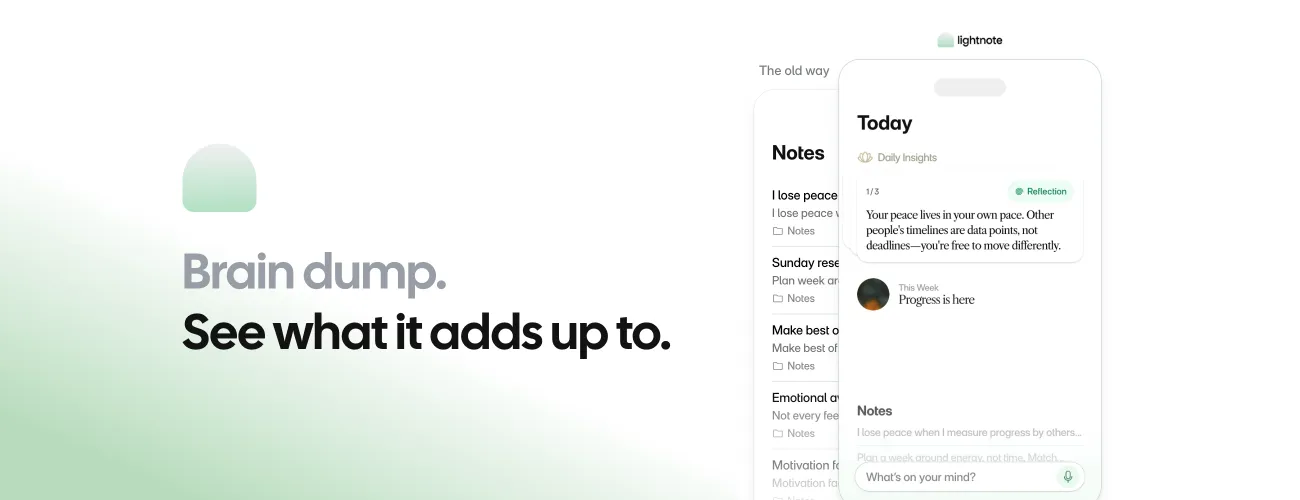
The product preview above shows the capture field and an example Daily Insight. It illustrates the workflow rather than the results of a test conducted for this article.
You might capture a thought about a difficult conversation, a sentence for an article, and an observation from your day. Those fragments can stay brief while Lightnote provides ways to organize and revisit them. Learn how AI note organization works if you want to understand the distinction between tagging, search, and resurfacing.
Keep appointments and time-sensitive commitments in a calendar or task system. For thoughts you want to preserve without filing each one, open Lightnote and save the next idea with enough context to return to it.
Sources
- Risko and Gilbert: Cognitive Offloading (2016)
- Leroy and Glomb: Tasks Interrupted and Ready-to-Resume Plans (2018)
- Gilbert et al.: Outsourcing Memory to External Tools (2023)
- Getting Things Done: The Five Workflow Stages
- Apple: Use Quick Notes on iPhone
- Apple: Dictate Text on iPhone
- Lightnote: Capture, Speech-to-Text, Auto Tagging, Live Notes, and Daily Insights
Frequently Asked Questions
Use a capture place you can reach immediately, then write or dictate the idea with one clue about its context. Save it and return to your activity. Choose a folder, expand the idea, or decide its priority when you review it later.
Record the thought plus the project, person, situation, or reason that makes it useful. Instead of writing “pricing,” write “pricing page: show a real customer example before the plan options.” Add a link if the idea depends on a particular source.
Use typing for short, quiet capture, especially around other people. Try speech-to-text when a thought is easier to say aloud. Check important names, numbers, and dates, and confirm that the note was saved. Choose the method that interrupts your current activity least.
Choose one default capture inbox and make it easy to reach on the devices you use. A paper fallback is fine; transfer only material that needs a future. Keep actual appointments and deadlines in a calendar or task system rather than burying them in general notes.
Quick capture saves one thought when it appears during another activity. A brain dump sets aside a short period to unload many thoughts together. They can share the same notebook, but quick capture should let you return to what you were doing without starting a full review.
Give useful notes a route back. Move commitments into your task or calendar system, revisit ideas around relevant projects, and archive fragments you no longer need. Search, a brief review, or note resurfacing can help you recover ideas without filing every note during capture.